
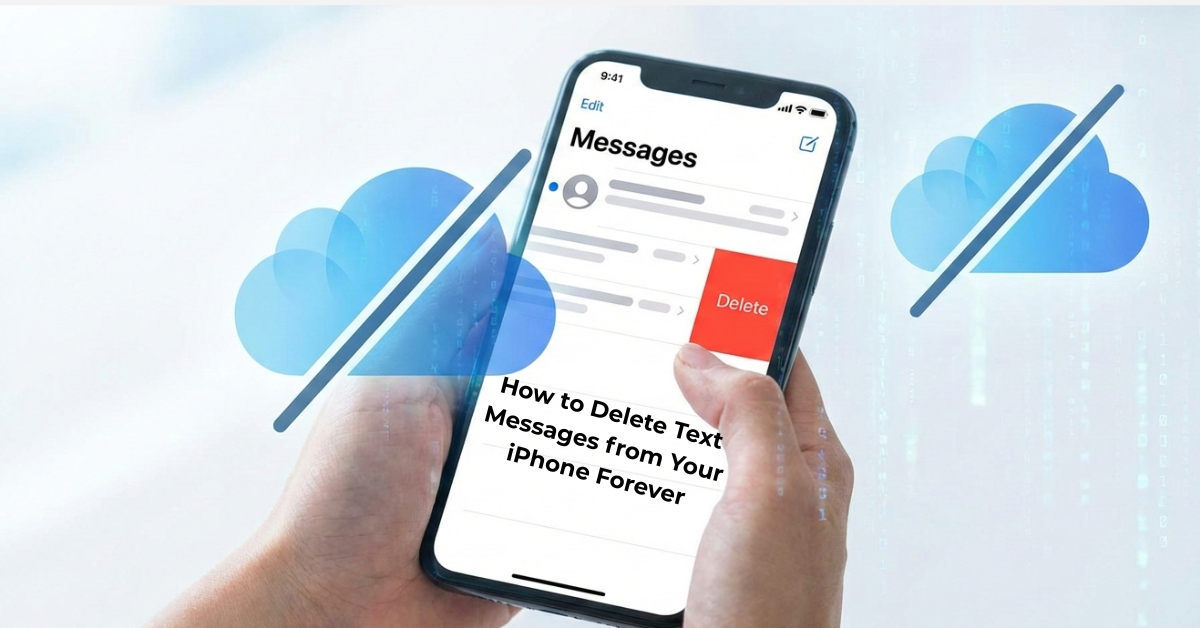
How to Delete Text Messages from Your iPhone Forever: A Simple Guide
Do you want to delete text messages from your iPhone for good? You are not alone. Many people want to erase their old texts. Maybe you need more space on your phone. You are selling your phone or giving it to a friend. Or perhaps want to keep your private talks private.
Sometimes, just deleting a message is not enough. The message might come back. This is because your iPhone saves messages in more than one place. iphonexa.com will show you the right way to erase your text messages forever. We will use simple words and clear steps. Let’s learn how to delete texts so they can never come back.
Part 1: First, Delete the Messages from Your Phone
This is always the first step. You need to delete the messages from the screen you see every day.
How to Delete a Whole Conversation:
- Open your Messages app. This is the green app with a white speech bubble.
- You will see a list of all your text talks. Swipe your finger left on the conversation you want to delete.
- A red button that says Delete will appear. Tap the red Delete button.
- The whole conversation will be gone from your list.
How to Delete Just One or Two Messages:
You don’t want to delete the whole talk. You just want to delete one private message.
- Open the Messages app and tap on the conversation.
- Find the specific message you want to erase. Tap and hold your finger on that message bubble.
- A menu will pop up. Tap More.
- Now you will see little circles next to messages. Tap the circles next to every message you want to delete. A blue checkmark will appear.
- Look at the bottom left corner of your screen. Tap the trash can icon.
- Tap Delete Message to confirm.
You have now cleaned up your phone! But for many people, the job is only half done. Your messages might be saved somewhere else you can’t see.
Also see how to hide messages on iPhone for better privacy.
Part 2: The Most Important Step – Delete Messages from iCloud
This is the step most people forget. Your iPhone can save all your messages in a place called iCloud. iCloud is like a secret online closet for your phone’s stuff. If your messages are in iCloud, they can come back to your phone, or even show up on your iPad or Mac computer.
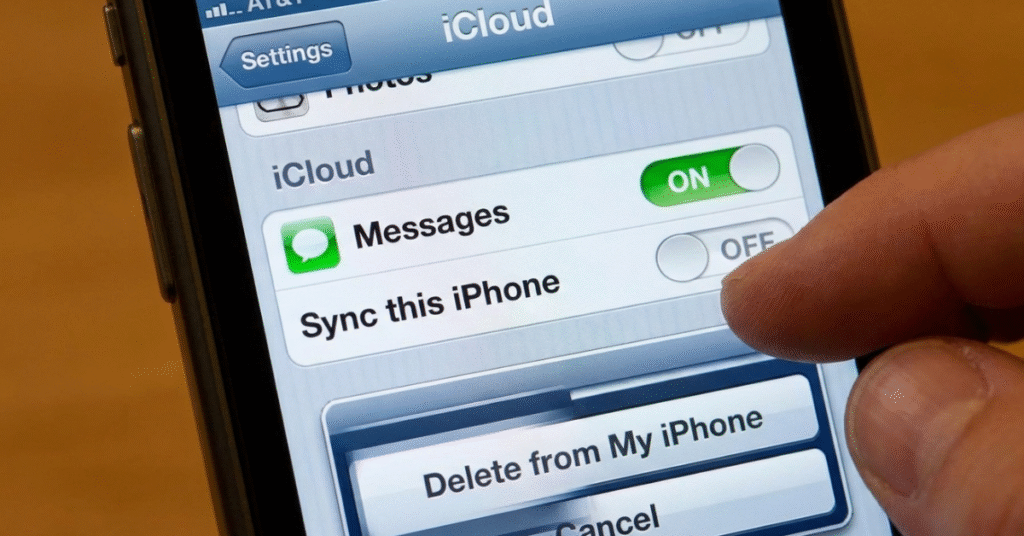
You need to check if your messages are in iCloud and delete them from there. Here is how:
- Open your Settings app. It is the gray app with gears.
- At the very top, tap on your name. It says “Apple ID, iCloud, Media & Purchases.”
- On the next screen, tap iCloud.
- You will see a list of apps that use iCloud. Tap where it says Show All so you can see every app.
- In the big list, find Messages. Tap on it.
- You will see a switch next to the words Sync this iPhone. If the switch is green, it means your messages are being saved in iCloud.
- Tap the switch to turn it OFF. The switch will turn from green to white.
- A pop-up message will appear on your screen. It gives you two choices. This is the most important part:
The first choice says Disable and Download Messages. Do NOT pick this one.
The second choice says Delete from My iPhone. You MUST tap this one.
By tapping Delete from My iPhone, you are telling your phone to remove all the messages from the online iCloud closet. This helps make sure they are gone forever from every device connected to your Apple ID.
Part 3: Delete Messages from Your Backups
What is a backup? A backup is like a photocopy of your entire phone. You make a backup so that if your phone breaks, you can get all your stuff back on a new phone.
But here is the problem: If your backup has your old messages saved inside, and you copy that backup to a new phone, your deleted messages will come back! To stop this, you need to make a new, clean backup after you have deleted your messages.
How to Make a New iCloud Backup (The Easy Way):
Most people use iCloud to make backups. You cannot clean an old backup. You must make a fresh one.
- First, make sure you have already deleted your messages and turned off iCloud Messages (the steps in Part 1 and Part 2).
- Go back to Settings > [Your Name] > iCloud.
- Tap iCloud Backup.
- Make sure the switch next to iCloud Backup is turned ON (green).
- Tap Back Up Now. Your phone will start making a new backup. This new backup will not have your old messages in it.
- Wait until the backup is finished. You can watch the progress bar.
How to Make a New Computer Backup (Using a Mac or PC):
Some people save their backup on their home computer.
- Use your charging cable to connect your iPhone to your computer.
- On a Mac computer (with newer software), open the Finder app. On a Windows PC or an older Mac, open the iTunes app.
- In Finder or iTunes, click on your iPhone. You will see its picture or name.
- Look for a button that says Back Up Now. Click it.
- The computer will make a new backup file. This new file on your computer will not have the messages you just deleted.
Part 4: The Super Private Delete (For When You Sell Your Phone)
If you are giving your phone away or selling it, you should be extra careful. You want to wipe it completely clean, like it just came from the store. Here is what to do:
- Follow all the steps above first (Parts 1, 2, and 3).
- Now, go to Settings > General.
- Scroll all the way to the bottom. Tap Transfer or Reset iPhone.
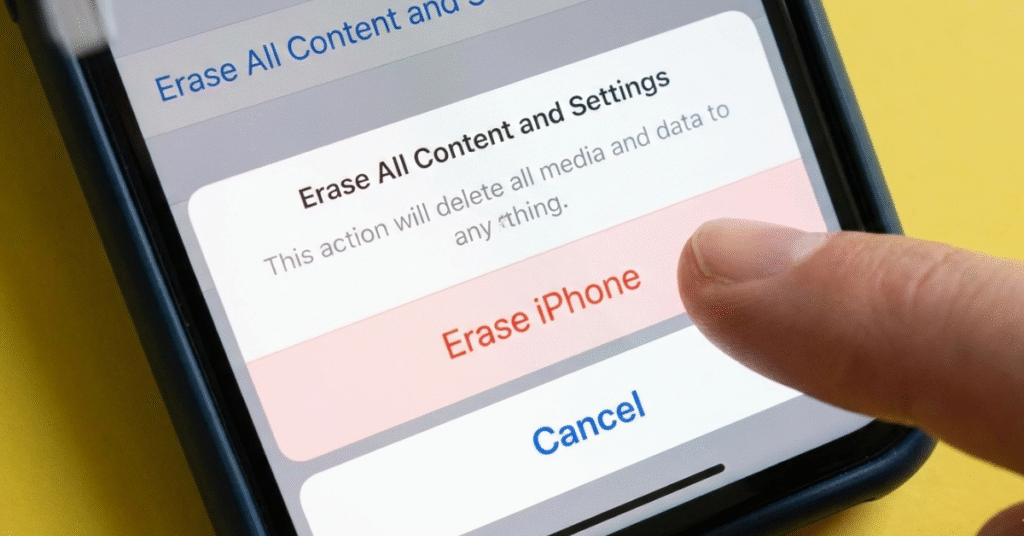
- Tap Erase All Content and Settings.
- Your phone will ask for your passcode. It will then warn you that this will delete everything. This is what we want. Confirm that you want to erase the phone.
- Your iPhone will restart and look brand new. It will show the “Hello” screen, just like when you first bought it.
- When you are setting up the phone for the new owner, you must choose “Set Up as New iPhone.” Do not choose to restore from an old iCloud or computer backup.
This is the safest way to make sure every single bit of your information is gone for good.
Conculsion
Getting rid of your iPhone messages for good comes down to one simple idea: you have to clean them out from every single place they’re stored. That means tackling your phone itself first, then going into iCloud to cut off the sync, and finally, making sure no old backup is waiting to bring them all back. Do these three steps in order, and you can be confident those conversations are truly gone—whether you’re making space, protecting a private chat, or getting your phone ready for its next owner. It might feel like a bit of work, but that’s the only way to get the clean slate you’re looking for. You’ve got this.
Frequently Asked Questions
Q: Can deleted texts be recovered?
If you complete all steps in this guide—device, iCloud, and backups—recovery is nearly impossible for most users. Your messages will be permanently deleted from your iPhone.
Q: How do I quickly free up space?
Go to Settings > General > iPhone Storage > Messages. Here, delete conversations with large attachments to immediately free up iPhone storage.
Q: Why do my deleted texts come back?
This happens when iCloud Messages is on. Fix it by going to Settings > [Your Name] > iCloud > Messages, turning Sync off, and selecting “Delete from My iPhone.”
Q: How do I delete only photos from a text thread?
Open the conversation, tap the contact’s name at the top, select Info, and delete the photos/videos. Your text history remains.


2 Comments