
How to Install iOS 26 Beta 7 Safely Without Risks: A Step-by-Step Guide
Trying a new iOS beta is always mixed with a dose of fear, right? What if it turns your daily driver into a glitchy brick? I’ve been there. At iPhoneExa, we’ve put together this guide to help you through a safe installation of iOS 26 beta 7, show you what’s genuinely new, and provide fixes for when things get a little buggy.
What is iOS 26 Beta 7?
Think of iOS 26 Beta 7 as a backstage pass. It lets you see Apple’s next big show, complete with new Apple Intelligence features, before the curtains open. The trade-off? You might spot a few glitches or hear the script get flubbed. It’s not the final performance, so things like battery drain and the occasional crash are part of the deal, helping Apple perfect the software before the general public release.
See what’s new with camera control in iOS 26 in our Apple accepts iPhone camera control guide.
Ready to install: 3 Must-follow Steps First
Let’s do a quick safety check before you dive in. Skipping these is like going on a road trip without a spare tire—risky!
Check if Your iPhone Can Handle It
First, ensure that your iPhone model is listed. It is worse to anticipate an update and find out that your phone is not even on the list of those who have been invited to a party.
Save Your Important Stuff
This is non-negotiable. Back up everything to iCloud or your computer. I learned this the hard way years ago—trust me, future you will be grateful for this digital insurance policy.
Make Enough Space
The update needs room to unpack and settle in. Go through your photos and apps; clear out the digital clutter. It’s like cleaning your room before a guest arrives.
How to Install iOS 26 Beta 7: Two Safe Methods
Alright, the pre-flight checks are done. Time for takeoff. Here are your two tickets aboard the iOS 26 beta.
OTA Update: Super Simple Method
This is the easiest route for most people. It’s basically a wireless download-and-go.
- Enroll in Apple’s Beta Software Program.
- Grab the configuration profile they provide.
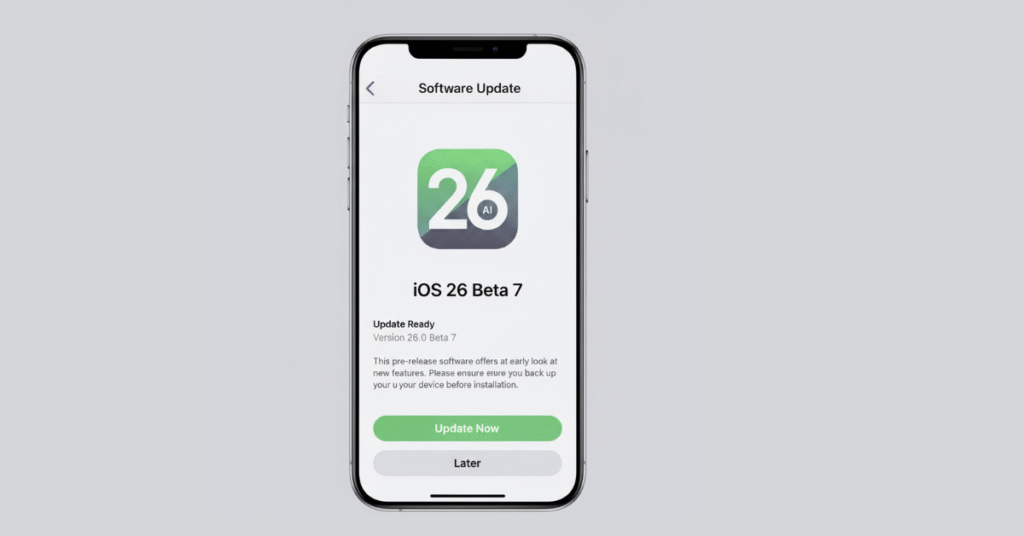
- Then just head to Settings > General > Software Update and tap the magic button.
IPSW Restore: For Tech-Savvy Users
This one’s for the pros. If the OTA method fails or you just want a perfectly clean slate, you’ll download a special file (the IPSW) and use Finder (Mac) or iTunes (Windows) to install it. It’s more involved, but it’s a surefire way to get the job done.
What’s New in iOS 26 Beta 7?
I’ve been running this on my main iPhone for a week, and a few things have genuinely caught my eye.
Apple Intelligence That Finally Delivers
Remember when Apple Intelligence felt a bit theoretical? It’s starting to click. Siri can now handle a command like,
“Find that document Lisa sent last week and add it to my reading list,” without breaking a sweat. The writing tools are also getting smarter, helping you quickly polish up emails.
A Visual Refresh You’ll Actually Notice
It’s not a revolution, but it’s a welcome evolution. The animations feel a bit silkier, and the Control Center has been reorganized in a way that just makes more sense. It’s the little things that add up to a fresher feel.
Performance That Won’t Disappoint
The big question: Does it feel slow? In my use, it’s been surprisingly zippy. Apps open a touch faster. Yes, my battery took a hit for the first 48 hours—that’s totally normal for a beta—but it settled down after that.
Troubleshooting Common iOS 26 Beta 7 Issues
Hit a snag? Don’t panic. Here are the fixes that worked for me.
Fixing Battery Drain and Performance Problems
Is your battery plummeting? I noticed that too. My first stop is always Settings > Battery to see which app is being a power hog. Turning off Background App Refresh for non-essentials almost always helps. And never underestimate the power of turning it off and on again.
Solving Wi-Fi Problems and App Crashes
Wi-Fi acting up? Try telling your phone to “Forget This Network” and then log back in. If that doesn’t stick, a network settings reset often does the trick. For a misbehaving app, an update might fix it. If not, a quick delete and reinstall usually clears its head.
How to Go Back to iOS 17
Had enough? The escape hatch is always open.
Plug your phone into a computer, fire up Finder or iTunes, boot into Recovery Mode, and hit ‘Restore’.
This is where that backup you made earlier becomes your best friend, restoring all your data once you’re back on stable ground.
iOS 26 Beta 7 vs. Previous Versions: Let’s Compare!
So, how does it stack up?
iOS 26 Beta 7 vs. iOS 17: What’s Really New?
Assuming that iOS 17 is a comfortable, reliable family car, iOS 26 is a concept car with all the new bling. You receive the high-tech AI, the smoother interface, and a peek into the future.
What’s Better Since Beta 6?
Everything in this version is polished. Apple polished most of the drawbacks of beta 6 a great deal- less random closing of apps, and generally more stable. It is as though a move towards the right direction.
What’s Coming Next?
The finish line is in sight. The final, polished version of iOS 26 is expected this fall, likely alongside new iPhones. Just before that, Apple will release a “GM” (Golden Master) seed, which is essentially the final build.
Frequently Asked Questions
Q: Is iOS 26 beta 7 stable enough for my main iPhone?
I wouldn’t recommend it if it’s your only device. Betas can be unpredictable. Use a secondary phone if you have one.
Q: How long does installation take?
A fast Wi-Fi connection is installed in half an hour.
Q: Can I go back to iOS 17 if I don’t like it?
Absolutely. It is direct, as we discussed in the troubleshooting section above.
Q: When will everyone get iOS 26?
We’re just a few months away. Apple typically releases the final version in September.
Conclusion
Is iOS 26 Beta 7 worth the risk? If those flashy new Apple Intelligence features are truly calling your name, and you can handle a few minor, predictable bugs, then absolutely jump in. You need to play it smart: Follow our safety guide, never skip that full backup, and remember you can always bail out and revert to stable iOS 17 if things get weird. Thanks for hanging out with iPhoneExa! We’re tracking the final iOS 26 release closely for you. Now enjoy the testing!

6 Comments