Ever feel that flash of panic when someone glances at your lock screen? We’ve all been there. Whether it’s surprise party plans, confidential work chats, or simply wanting a clutter-free notification list, the need for privacy is a real concern. The good news? You don’t have to choose between keeping messages and hiding them.
Here at iPhonexa, we’ll show you exactly how to hide messages on your iPhone without deleting them. This guide unlocks the built-in iOS secrets and trusted methods to hide text messages on iPhone, keeping your conversations secure and out of sight—for good.
Why do we need to hide messages on iPhone?
Think about it: your phone is a window into your life. It might hold a surprise vacation you’re planning for a partner, private financial details, or a heartfelt chat you’re not ready to share. It’s not about secrecy, but simple peace of mind.
Exactly why you might want to hide messages on your iPhone. It’s a practical way to protect your digital space, ensuring certain conversations remain for you, without the finality of hitting delete.
Method 1: Using Built-in iPhone Features to Hide Messages
Here are a few methods to safely hide iPhone messages easily.
1. The Archive Method (Third-Party App Solution)
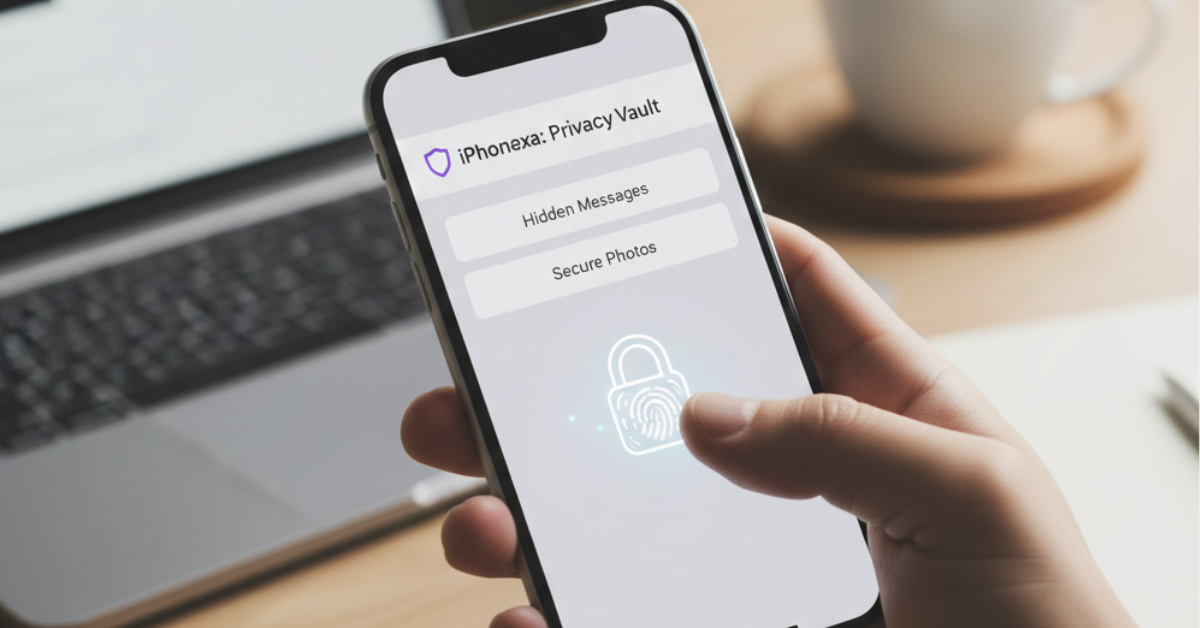
While iOS doesn’t have a native archive for Messages like Gmail does for email, several best apps to hide iPhone messages create this functionality. These apps work as a private folder for iPhone messages, letting you move conversations out of your main inbox without deleting them.
2. Disable Message Previews for Privacy
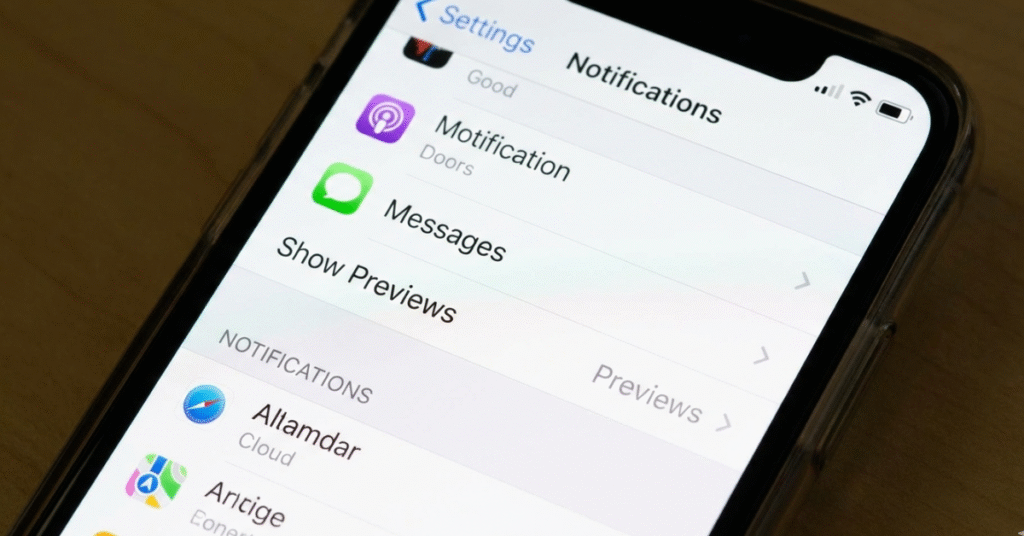
This is one of the simplest ways to make messages invisible on the iPhone lock screen:
- Go to Settings → Notifications → Messages
- Tap “Show Previews”
- Select “When Unlocked” or “Never”
This hide message content notifications method keeps your messages private from prying eyes while your phone is locked—a crucial iPhone message privacy setting everyone should know.
3. Filter Unknown Senders
Perfect for hiding messages from unknown contacts, iPhone:
- Open the Messages app
- Tap “Filters” in the top-left corner
- Enable “Filter Unknown Senders”
This automatically sorts messages from people not in your contacts to a separate tab, effectively hiding texts iPhone receives from marketers or unknown numbers.
4. Mute Specific Conversations
To hide alerts, iPhone messages from particular contacts:
- Open the conversation in Messages
- Tap the contact name at the top
- Enable “Hide Alerts”
The conversation remains in your inbox but won’t trigger notifications—ideal for private business messages, iPhone management, or group chats that are active but not urgent.
Method 2: Third-Party Apps for Advanced Message Hiding

Secure Messaging Apps with Built-in Privacy
For those needing stronger, secure messaging iPhone solutions, these apps offer encrypted message hiding:
Signal and Telegram:
Both offer “Secret Chats” or disappearing messages that auto-hide after reading. While not hiding existing iPhone messages, they’re excellent for future confidential texts and iPhone communication.
Vault and Calculator Hide Apps
These are dedicated private photo apps with message-hiding capabilities:
- Calculator%: Appears as a calculator but stores hidden messages
- KeepSafe Photo Vault: Primarily for photos, but can screenshot and store messages
- Private Message Box: Specifically designed as a secret folder for iPhone texts
Important: While these third-party secret messaging apps are popular, always download from the official App Store and check reviews for security.
Method 3: Strategic iMessage and iOS Management
Create a Separate “Hidden” Messages Environment
Here’s a clever workaround to hide specific conversations on iPhone:
- Use a secondary email to create a separate Apple ID
- Log in to Messages with this ID when needing privacy
- Switch back to your main ID normally
This creates an invisible inbox for iPhone messages—a bit technical, but effective for creating a secret chat iPhone system.
The Screenshot and Delete Method (Temporary Hiding)
For temporary needs:
- Take screenshots of important messages
- Save to a secure folder or vault app
- Delete the original conversation
- Restore from a screenshot when needed
While this involves deletion, the conversation is preserved visually—useful when you need to hide messages from your spouse’s iPhone temporarily but want to keep the information.
Frequently Asked Questions
Can you hide iMessages from the home screen completely?
Not natively, but using hide alerts iPhone messages (muting) combined with disabling message preview iPhone minimizes visibility. For complete invisibility, third-party vault apps for iPhone texts are your best option.
Does iPhone have a secret messaging feature?
Apple focuses on encryption (blue bubbles), not hiding. The closest is the filter unknown senders iPhone feature in Messages. For true secret conversation apps for iPhone messages, you’ll need third-party solutions.
How to password-protect text messages on iPhone?
iOS doesn’t password-protect Messages specifically. However, you can:
- Use Screen Time to restrict Messages app access
- Employ a vault app with passcode protection
- Enable full device passcode (the simplest method)
What’s the best app to hide text messages?
Based on security and usability, Signal (for future messages) or Calculator Hide App (for existing messages) rank highly. Remember that iPhone message privacy settings should always complement any app you use.
How to hide messages on iPhone without deleting iOS 17/18?
All methods above work on recent iOS versions. Apple occasionally adds new message privacy features—check Settings → Messages after updates for new options like “In-App Filtering” or enhanced iCloud message hiding capabilities.
Advanced Tips for Message Privacy Management
Create a Message Hiding Routine
- Daily: Use the filter unknown senders to automatically filter new messages
- Weekly: Review conversations and mute non-essential chats
- Monthly: Export important conversations to Notes or Files app for long-term storage
Balance Convenience and Privacy
The most effective approach combines:
- Built-in features for daily use (preview settings, filtering)
- Third-party apps for specific sensitive conversations
- Behavioral habits like regular inbox management
Security First Reminder
While learning how to hide text messages on iPhone is useful, remember:
- Never hide messages related to safety concerns
- Be transparent in relationships about privacy boundaries
- Regular backups protect against accidental deletion
Conclusion:
Learning how to hide messages on iPhone without deleting them isn’t about secrecy—it’s about controlling your digital footprint. Whether you’re using simple iPhone message filtering or dedicated private message box apps, you have multiple options for maintaining message privacy.
Start with iOS’s built-in features, hiding message previews and filtering unknown senders. For needs, explore reputable third-party apps. And remember: the most powerful privacy tool is your own awareness of iOS message management capabilities.
Your messages, your rules. Now you know to keep them exactly where—and how—you want them.